
Trigger Orders allow traders to automatically place or cancel orders when another order is fully executed. A common use case is creating a profit target or stop order that becomes active only after a primary entry order fills. This helps automate trade management and reduces the need for manual order entry.
For example:
- A trader enters a Buy Limit order for 100 shares at $10.00.
- A Trigger Order is created to Sell 100 shares at $12.00.
- Once the Buy Limit order is fully executed, the Sell Limit order is automatically sent to the market.
Method 1 – Create Trigger Orders after placing the primary order
We will set a primary limit buy order for 30 shared of NVDA at 195.
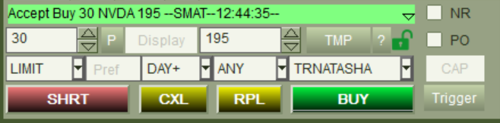
After it has been sent, the “Trigger” button will become available in the Montage Window. Click on it, and the following window will pop up.

Here, we can fill in the order that we want to place after the first order has been executed. We have decided to place a sell limit for our position of NVDA at 200. Our position will include any shares we already have of NVDA + the 30 we just bought in the primary order. Click “Send Order”. Now, the order is linked to your primary order.
If you open your “Triggers” (Trade->Trigger Order) window, the order will appear there. Right-clicking on it will allow you to edit or delete the trigger. There is also an option of “Primary Order”, which will highlight the trigger’s primary order in the order window.


Method 2 – Create Trigger Orders Before Sending the Entry Order
Another method of creating trigger orders is to create both orders before sending it out. For fast-moving stocks, it may be beneficial to create Trigger Orders before sending the primary order. This ensures the Trigger Order is ready immediately upon execution of the entry order. To do this, right click on your Montage Window and select “Style” and then “Trigger”.

The original order fields are where you will fill in your primary order, then the order field on the bottom will be where you configure your order that will be triggered. Now, the trigger order will be automatically linked to the first order.

Ensure that the “Trigger Order” box is checked off. To place the order, select the action for the primary order. In this case, we will press “BUY”.
Trigger Order Hotkey
A sample hotkey script for the NVDA example:
ROUTE=LIMIT;
Price=195;
Share=30;
TIF=DAY+;
WithTrigger=RT:LIMIT PX:200 ACT:SELL QTY:POS TIF:DAY+;
BUY=Send;


