
OCO orders allow you to place two linked orders at the same time, with the condition that if one order gets filled, the other is automatically cancelled. This is commonly used to manage a stop loss and profit target at the same time. For example, pairing a stop loss order to limit downside risk and a target limit order to lock in profit.
While OCO orders are useful, there can be some potential drawbacks to using the OCO orders to manage positions.
- One side of the order may require buying power While one side of the bracket order serves to liquidate the current position, the other order is seen as an active executable order that requires buying power.
- Availability of shares to short may affect the approval of the order. Even though the orders are meant to close the existing position, the system will interpret one side as a potential new order. On sell OCO orders, the order may be rejected if there are no shares available to borrow, or if the stock is on a Short Sale Restriction status (SSR).
As an alternative, DAS Trader offers a viable solution to this limitation on OCO orders with its Range Stop Order.
Setting up an OCO Trade
Right-click inside your Montage Window, go to “Style” and select “OCO”.
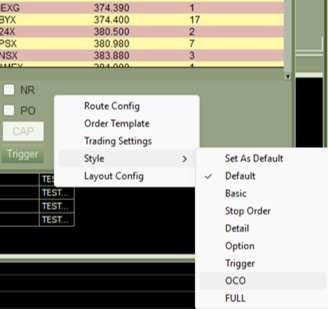
Once selected, your montage will expand to show additional fields required for the linked orders.

As an example, assume you are long SPY at 500 shares. We will set:
- A stop market order below price
- A limit sell order above price
Start with the protective stop, which we will enter into the order fields on the top:
- Shares: 500
- Route: Stop
- Stop Type: Market
- Stop Type: Market
his limits downside risk if SPY moves against your position.

Before continuing, ensure the “OCO Order” box is checked, as this is what links both orders together. Without it, the orders will act independently.
Now, set your other order in the order fields on the bottom:
- Action: Sell
- Shares: 500
- Route: Limit
- Limit Price: 739 (Above your current position average cost)
This locks in gains if SPY moves in your favor.
Once both orders are configured, click the “Sell” button to submit the OCO group. You will now see both orders in your Open Orders window, linked together.

Cancelling OCO Orders can be done in the Orders Window by using the “X” listed beside each order.
Turning existing orders into OCO pair orders
Existing orders that are already in your order window can also be made into an OCO order. Select the orders, then right click to select the “Create OCO” option.

Hotkey OCO
Another method of using OCO orders is through the hotkey builder. Select “Trade” in the “Command Categories”, and “Order Cancel Order” in “Sub Categories”. After adding the script template, you can fill in your order and the next order that you want to pair it with. Note that every “:” in the script is where you can customize your order. An example of the SPY OCO Order is shown in the script below. Ensure you press “Commit” when you are done creating your hotkey.


