
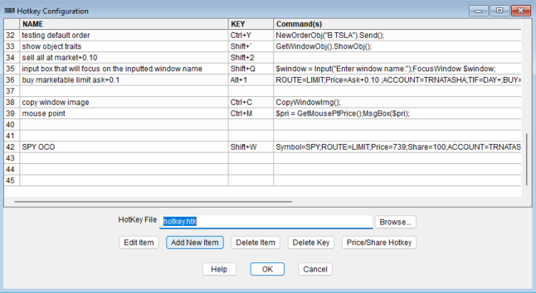
To place orders with hotkeys on DAS, users will need to fill in hotkey script with the relevant information depending on the type of order. To create a hotkey for these types of orders, go to “Setup”, then “Hotkeys/Scripts”, then “Hotkeys”. This window will popup. Press “Add New Item”.
Then click on the Order Script Wizard Tab:
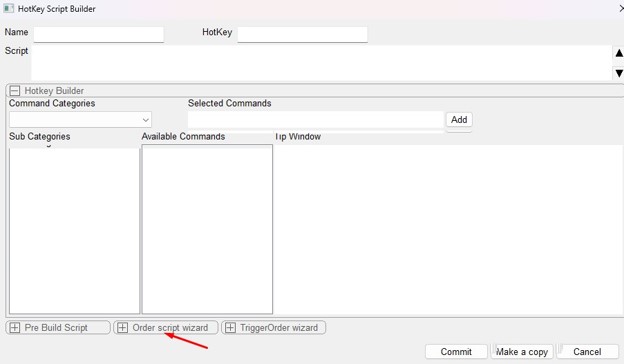
Using the Order Script Wizard, users can build and customize specific order types. For specific order types, chose from the drop-down menu in “Route”. After selecting what you need, the remaining blank boxes will become editable or non-editable depending on the needed information to complete the order. Click on “Build Script”, and set a hotkey to it.
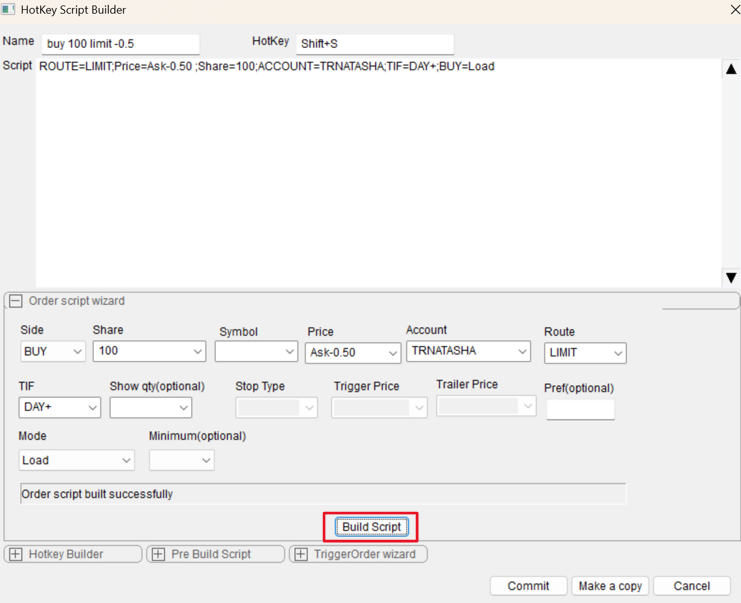
*Note that the “BUY=Load” means that you will still have to press “Enter” in the montage after using this hotkey, as it will only load the order information. If you would like to send the order automatically, then set it as “BUY=Send”.
*Note that all feeds do not need to be completed. The system will revert to the information in the montage to complete the order if a field is left blank.
When you’re done, select “Commit”, then “Ok” in the previous window.


